
🌐 Easily host your own Discord music bot on Square Cloud and play music in your Discord server, right from the cloud.
Warning
Since March 2026, Discord requires DAVE (end-to-end encrypted voice) to join voice channels. JMusicBot 0.4.3, the latest release of the JMusicBot project, does not support DAVE, so the bot logs in but cannot join voice channels. To host music for your bot today, use our Lavalink project with a Lavalink client library that supports DAVE.
New to Square Cloud? Follow these steps in order. You will create an account, choose a plan, create your bot on Discord and upload a ready-made zip.
Sign up on the Square Cloud signup page with your email.
Hosting on Square Cloud requires an active plan, and the upload in step 5 asks for one, so choose it now.
JMusicBot needs 1 GB of RAM: the Hobby plan runs it. Compare every plan and its price on the pricing page.
- In the Discord Developer Portal, click New Application and give it a name.
- On the Bot tab, click Reset Token and copy the token. Keep it secret: it controls your bot.
- On the same tab, under Privileged Gateway Intents, turn on Server Members Intent and Message Content Intent.
- Invite the bot to your server: on OAuth2 > URL Generator, check
bot, choose its permissions and open the generated link.
Download project.zip from the latest release. This is the file you upload in the next step: you don't need to extract it.
- Open the Square Cloud upload page.
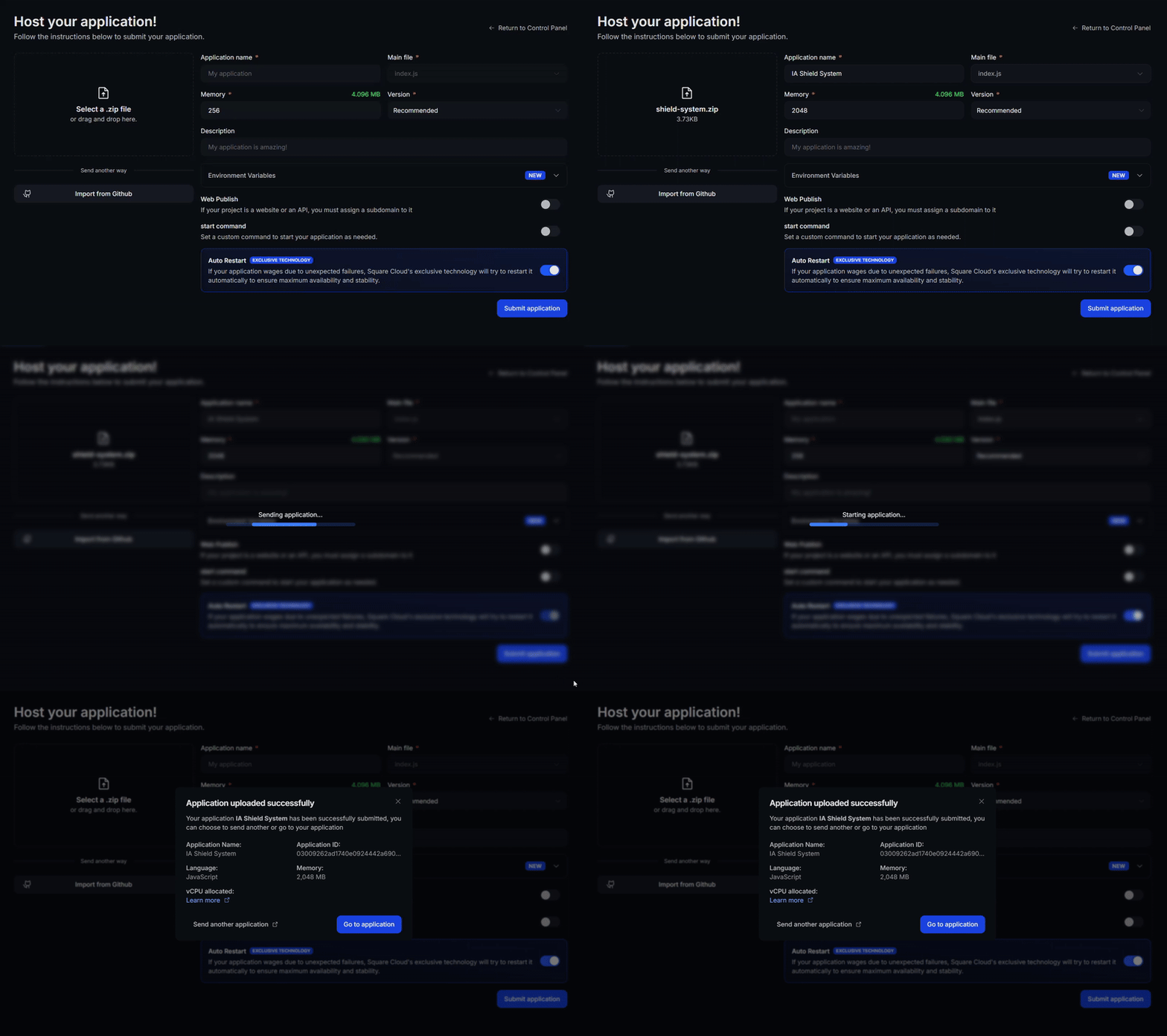
- Select the zip option and send the
project.zipyou downloaded. - Open Advanced configuration and add these environment variables:
BOT_TOKEN: the token from step 3BOT_OWNER_ID: your Discord user ID (turn on Developer Mode in Discord's Advanced settings, right-click your name and choose Copy User ID)PREFIX: the command prefix, for example!
- Click Deploy.
In your Discord server, send !help (with your prefix) to see the bot's commands. If it doesn't answer, open your application in the Square Cloud dashboard and check its logs.
📖 Need more details? Read the Discord bot guide in the Square Cloud documentation.
The goal of this project is to let you host a Discord music bot on Square Cloud, so you can play music in your Discord server from anywhere, directly from the cloud.
🙋♂️ Questions or suggestions? Contact Square Cloud Support or open an issue in this repository!
Maintained by @JoaoOtavioS on GitHub.