
A VS Code panel for the Claude Code sessions you run in the terminal: see what's running and what's waiting for you, open several sessions at once in named, coloured terminals, and reopen them after a restart.
Not affiliated with or endorsed by Anthropic. Claude is a trademark of Anthropic.
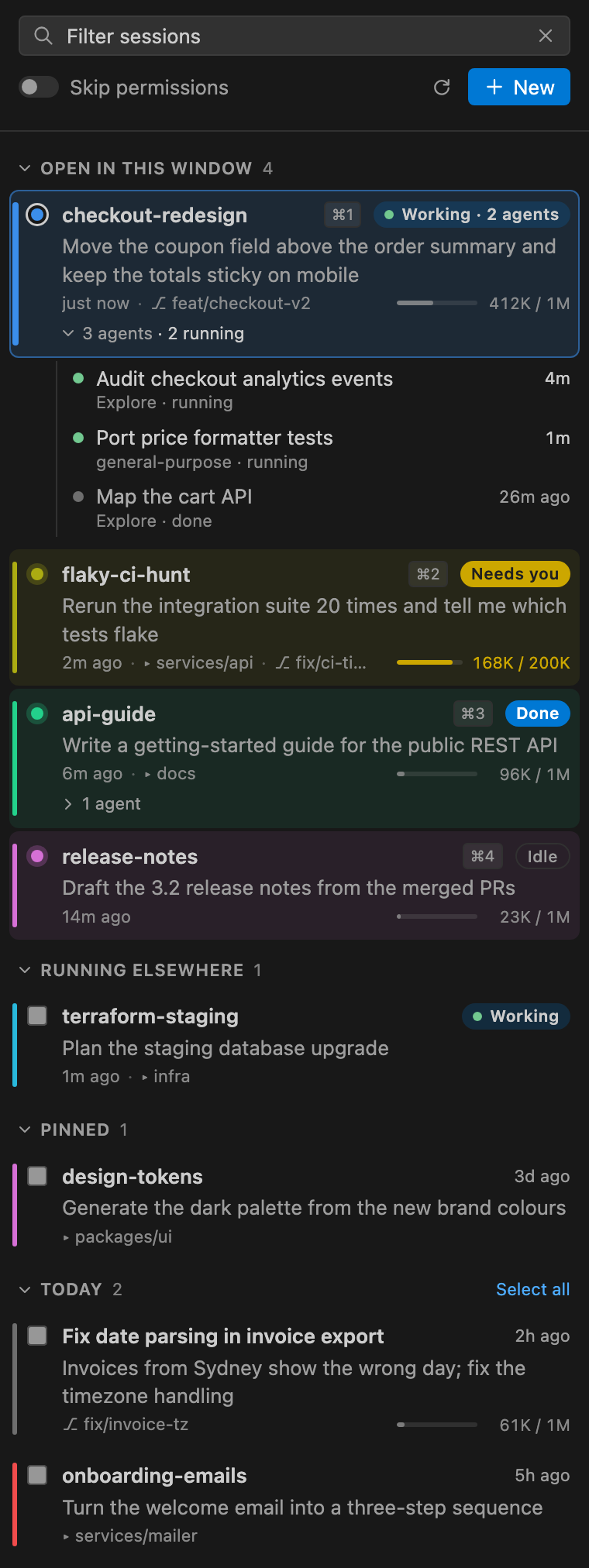
- Every session for this workspace, grouped into Open in this window, Running elsewhere, Pinned, then Today / Yesterday / This week / Older. Each shows its name, colour, last prompt, folder and branch. Clicking one running elsewhere opens it read-only, so the other window's session is never resumed twice by accident.
- Running elsewhere lists sessions running in another window, a terminal outside VS Code or the Claude desktop app while they're working, waiting for you, or went idle in the last hour. Ones idle for longer (the desktop app keeps every session in its sidebar running) move to the day groups, still marked as running elsewhere, and come back when they get busy again. Those in the desktop app are tagged Claude app.
- Sessions started by another one are listed under it, › 3 sessions: in the Claude desktop app (macOS), from
the app's own records, with forks marked Fork; and with
claude --bg, from the starting session's transcript, marked Background. WithclaudeSessions.wakeParenton, the starting session gets a one-line note (its name andclaude logs <id>, never its output) once the background one finishes and it is idle in this window, waiting until you aren't looking at that terminal. - What it's doing now: a live session's card has one line for its current step: Editing extension.js, Running npm test, Searching for 'foo', Running 2 agents, Thinking…, or Waiting: permission prompt. Running subagents show theirs too.
- Live status: Working, Needs you (a permission prompt, say), Idle, or Done when it finished while you were looking at something else. That also gives a notification, a badge on the panel icon and a bell in the status bar. Sessions you started by hand in a terminal are picked up too.
- What's running everywhere: the top of the panel says 3 working · 1 needs you · 2 agents running across every live session (this window, other terminals, the Claude desktop app, hidden ones included), and so does the status bar. Click one to list only those sessions; click it again for all.
- Open several at once: tick them and press Open N. Each opens in its own terminal, named and coloured like the session. Clicking a session that's already open jumps to its terminal.
- Remembers what was open: after a restart it offers to reopen them. A session is forgotten only when you close its terminal or exit Claude in it.
- Subagents: a session that spawned agents shows › N agents · M running; expand it to list them with their state and elapsed time, and click one to open it in a read-only view. A Workflow run is one row with its phase and how many of its agents are done; its agents fold under it.
- Read-only view of a session's transcript in an editor tab, following it live: your prompts, Claude's replies,
tool calls with their input and results, subagents (open each in its own view), compactions and turn times.
From the
⋯menu or Session Panel: Open Read-only View…. - Results: › N results lists the artifacts and docs a session published, the pull and merge requests it
opened, the files it sent you and the plans you approved. Click one to open it: links in your browser, files in
VS Code, PDFs and Office documents in their own app. Turn it off with
claudeSessions.showResults. - Context usage: a bar with tokens in use against the context window.
- Cache timer: while a running session is idle or waiting for you, ◷ 42m next to its time says how long until its prompt cache goes cold (1 h or 5 min after Claude's last reply, as the transcript records it), amber in the last five minutes, then cold. The tooltip has the time it goes cold and the tokens it'd take to cache again.
- Current session: the one whose terminal is active is framed in its colour.
- Your order: drag open and pinned sessions within their section, or Move up / Move down in
⋯. Cmd+1–9 follow it. - Skip permissions switch adds
--dangerously-skip-permissionsto every launch. ⋯menu: rename, colour, pin, hide, move up / down, fork, resume in Claude Desktop (as/desktopdoes, then closes its terminal), open the read-only view or the raw transcript, copy the id or the resume command.
The panel lives in the Secondary Side Bar (the right-hand one). Cmd+Alt+C (Ctrl+Alt+C) shows it.
From the VS Code Marketplace: search for Session Panel for Claude Code in the Extensions view, or run
code --install-extension bkaluza.claude-session-panelCursor, Windsurf and VSCodium install it from Open VSX.
Each release also has the .vsix, for
Extensions: Install from VSIX….
| macOS | Windows, Linux | |
|---|---|---|
| ⌘1 … ⌘9 | Ctrl+1 … Ctrl+9 | Switch to open session 1–9 (in the panel's order; shown as ⌘N there). Active while a terminal or the panel has focus, so in a file they still switch editor groups. |
| ⌘⌥C | Ctrl+Alt+C | Show the panel |
| ⌘⌥R | Ctrl+Alt+R | Quick multi-select picker, without the panel. Enter with nothing ticked resumes the highlighted session. |
| ⌘⌥N | Ctrl+Alt+N | New session. Active while a terminal or the panel has focus, so in a file the key stays free for other extensions. |
On a Mac, ⌘ is Command and ⌥ is Option.
VS Code sends keys to the shell while a terminal has focus unless the command is listed in
terminal.integrated.commandsToSkipShell, and Claude Code takes them there. The first time, the extension asks
before adding the commands of these keys there. If you said Not now, run Session Panel: Enable Shortcuts in
Terminals later. To turn Cmd+1–9 off entirely, set claudeSessions.sessionShortcuts to false.
Sessions in Open in this window and Pinned stay in the order you put them in; the other sections are by time. To move one:
- drag it up or down within its section;
- or use Move up / Move down in its
⋯menu.
⌘1–9 follow the new order. Session terminals in editor tabs move to match, and dragging a terminal tab yourself reorders the panel; terminals in the terminal panel can't be moved by an extension, so for them only the panel changes.
| Setting | Default | |
|---|---|---|
claudeSessions.terminalLocation |
panel |
panel (the terminal panel), editor (tabs in the current editor group) or split (tabs in a right-hand editor group, files on the left) |
claudeSessions.sessionShortcuts |
true |
Cmd+1–9 to switch sessions, and the ⌘N hints |
claudeSessions.restoreOnStartup |
ask |
reopen last window's sessions: ask, always or never |
claudeSessions.notifyWhenDone |
true |
notify when a session finishes or needs you while you're elsewhere |
claudeSessions.wakeParent |
false |
tell a session when a claude --bg session it started finishes |
claudeSessions.skipPermissions |
false |
start sessions with --dangerously-skip-permissions (also the switch in the panel) |
claudeSessions.includeSubfolders |
true |
also list sessions started in subfolders of the workspace |
claudeSessions.maxRecent |
100 |
how many past sessions to list |
claudeSessions.elsewhereIdleHours |
1 |
a session running elsewhere idle this many hours moves from Running elsewhere to the day groups; 0 = never |
claudeSessions.showResults |
true |
list each session's results on its card |
claudeSessions.showCacheTimer |
true |
on a running session's card, the time until its prompt cache goes cold |
claudeSessions.contextWindow |
0 |
context window for the usage bar; 0 = auto (1M, or 200K for Claude 3/4 models) |
claudeSessions.command |
claude |
the command that starts Claude Code |
claudeSessions.extraArgs |
[] |
extra arguments for every launch |
claudeSessions.accounts |
[] |
several Claude accounts, one config directory each; see Several accounts |
In Restricted Mode (an untrusted workspace) command, extraArgs, accounts and skipPermissions are read from
your user settings only, so a repository can't change what gets launched.
Claude Code keeps one account per config directory: ~/.claude, or the one CLAUDE_CONFIG_DIR names. To use, say,
a work and a personal subscription side by side, give each its directory and list them:
"claudeSessions.accounts": [
  { "label": "Work", "configDir": "~/.claude", "color": "blue" },
  { "label": "Personal", "configDir": "~/.claude-personal", "color": "green" }
]
The panel then lists the sessions of both, each card with its account, and New session asks which account to
use, the one you last picked in the workspace first. A session resumes on its own account. Its terminal gets the
account's directory in CLAUDE_CONFIG_DIR, except ~/.claude, which only works with the variable unset. An entry's
command (default claudeSessions.command) can be an alias of your shell that sets the variable itself. Log in once
per account, in a terminal with its CLAUDE_CONFIG_DIR set.
The extension reads the files Claude Code keeps in its config directory, ~/.claude (or $CLAUDE_CONFIG_DIR if
you set it, or each one in claudeSessions.accounts):
sessions/<pid>.json: one per running Claude Code process, with its session id, name and busy/idle status. The extension matches those processes to this window's terminals.- On macOS, the Claude desktop app's
~/Library/Application Support/Claude/claude-code-sessions/: which session started or forked which, for nesting them. projects/<workspace path>*/<session id>.jsonl: the transcripts, for past sessions, titles, last prompts, context usage, and subagents (<session id>/subagents/). Only newly appended lines are read.
Order. Open in this window starts in terminal tab order: tabs left to right across the editor groups, then terminals in the terminal panel in the order they opened. Once you drag a session (or use Move up / down), that order is kept for this workspace, new sessions go to the end, and the session terminals' editor tabs are moved to match. Drag a terminal tab yourself and the panel follows. Terminals in the terminal panel can't be reordered by an extension, so only the panel's list changes for them. Pinned keeps the order you give it across workspaces; newly pinned sessions go to the end.
Activity line and read-only view. Both come from the transcript, which Claude Code writes one content block at a time, when the block is complete. So they're a step behind: a reply or a tool call shows up once it's finished, never while it's being written. While a session is busy the view ends with Working… (and the card says what the last finished step implies: a tool call without its result is running, otherwise Thinking…). Most thinking blocks are written without their text, so they show as Thinking… only. Commands are shortened on the card and stop before anything that looks like a credential; only file names are shown, not paths.
The view opens on the last 4 MB of a transcript (Load earlier entries reads further back) and keeps up to 1,500 entries as it grows; long tool input and output is cut at about 4,000 characters (Raw file opens the JSONL). It watches the file for changes, with the panel's 2-second poll as a fallback. It is read-only: nothing in it can send anything to the session, transcript text is shown as text (no links, HTML or images), and closing the tab stops the watching. Views don't come back after a window reload.
It launches claude --resume <id> in terminals and writes nothing to Claude Code's files. Nothing leaves your
machine: no network requests, no telemetry.
These files are Claude Code internals, not a documented format. If an update changes them beyond recognition, the panel shows a short notice instead of quietly showing less.
- VS Code 1.106 or later.
- The Claude Code CLI.
- macOS, Linux or Windows, including Remote SSH, WSL and containers (the extension runs where Claude Code runs).
Plain JavaScript, no build step, no runtime dependencies.
npm test                          # unit tests (node:test, synthetic fixtures in test/fixtures)
npx @vscode/vsce package          # build claude-session-panel-<version>.vsix
npx @vscode/vsce ls               # what goes into it